One of the most common accessibility problem that many people have trouble with is trying to read content off a website. Some reasons are:
- The text is too small to be read
- The font type or typefaces is very complex to read: instead of using a simple fonts such as Times New Roman, Myriad Pro, Calibri or Cambria, some website would use really obscure Fonts such as Ajaxsurrealfreak, Accent Cookie Dough or Bleeding Cowboys
- Some Website creators use very bright or pale colors that makes reading difficult. Some examples of the colors they use are Blue (Blue), Yellow (Yellow) or Pink (Pink).
- Also is the mixture of the font colors with that of the background.
Accessibility in a general sense is about making your website easy to use. This means having intuitive navigation and a clean layout. Visitors to the net are generally looking for information and are more likely to stay on a site that provides this information in a quick and straightforward manner.
3 easy and simple ways of fixing this problem is to use a screen reader, use a zoom magnification tool and use the browser's font size control.
Screen Reader
To make its operating system and Websites more accessible to persons with disabilities, Microsoft started including several different "Ease of Access" programs with its Windows operating systems. The "Screen Reader" program - called "Narrator" in Windows XP, Vista and Windows 7- is an application that will read aloud the words that are in the foremost window in the computer monitor. The narrator can be turned on through the "Ease of Access" menu in Windows.
Instructions
1. Open the "Start" menu and select the "Control Panel" option.
2. Click "Ease of Access" followed by "Ease of Access Center."
3. Click the "Start Narrator" option under the "Quick Access to Common Tools" section. This will launch the Narrator Screen Reader.
Magnifier Tool
The Magnifier tool in Windows operating systems allows users with poor vision to enlarge certain portions of the screen. You can set the Magnifier to enlarge portion of the screen that your mouse points to, keyboard pointer is located at or where you are currently typing text. Although it works almost the same in Windows XP, Vista and 7, some of the options, including how to start the application, differ between the Windows editions.
Instructions
Windows XP
1. Go to the "Start" menu, select "All Programs," click the "Accessories," select "Accessibility" and click "Magnifier."
2. Click "OK" in the window with more information on the Magnifier. Select the tracking mode in the "Magnifier Settings" window to either track the mouse cursor, keyboard pointer or text typing. Select the desired zoom from the "Magnification level" drop-down menu and minimize the "Magnifier Settings" window. (Do not close it out as it will terminate Magnifier as well.)
3. Click-and-drag the Magnifier window to the desired position on the screen. Hover the mouse over the window's edge to turn it into a double arrow and change Magnifier size. Move your mouse to the object you want to be enlarged and the portion of the screen will be displayed in the Magnifier window.
4. Close either the Magnifier or the "Magnifier Settings" window to exit the application when done.
Windows Vista
1. Go to the "Start" menu, select "Control Panel," click "Ease of Access," select "Ease of Access Center" and click "Start Magnifier" under "Quick access to common tools."
2. Select the tracking mode in the "Magnifier Settings" window to either track the mouse cursor, keyboard pointer or text typing. Select the desired magnification level under "Presentation" from the "Scale factor" drop-down menu and click "Hide" to minimize the "Magnifier Settings" window. (Do not close it out as it will terminate Magnifier as well.)
3. Click-and-drag the Magnifier window to the desired position on the screen. Hover the mouse over the window's edge to turn it into a double arrow and change Magnifier size. Move your mouse to the object you want to be enlarged and the portion of the screen will be displayed in the Magnifier window.
4. Close either the Magnifier or the "Magnifier Settings" window to exit the application when done.
Windows 7
1. Go to the "Start" menu, select "All Progarms," click "Accessories," select "Ease of Access" and click "Magnifier."
2. Click the "Views" drop-down menu to select either full-screen, lens or docked Magnifier mode. (Full-screen mode and lens mode are only available as part of the Aero experience. If your computer doesn't support Aero, or if you're using a theme other than an Aero theme, Magnifier will only work in docked mode.) Click the options button (displayed as a wheel) on the Magnifier toolbar and select the tracking mode in the "Magnifier Options" window to either track the mouse cursor, keyboard pointer or text typing. Click the "+" or "-" buttons on the Magnifier toolbar to increase or decrease Magnifier zoom level. Minimize the Magnifier toolbar. (Do not close it out as it will terminate Magnifier as well.)
3. Click-and-drag the Magnifier window to the desired position on the screen. Press the "Ctrl," "Alt" and "R" keys at the same time and then move the mouse pointer up/down or left/right to change the size of the Magnifier window. Move your mouse to the object you want to be enlarged and the portion of the screen will be displayed in the Magnifier window.
4. Close either the Magnifier window or the Magnifier toolbar to exit the application when done.
Magnification in Mac OS
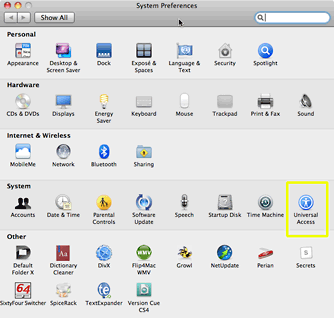
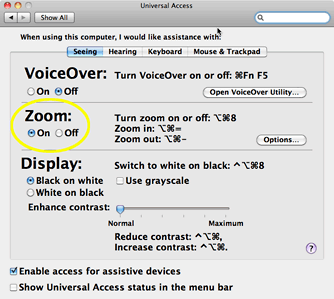
Apple has built that ability into Mac OS X. Launch System Preferences and select Universal Access. Turn on the Zoom function and exit System Preferences. Now, hold down the Opt and Cmd keys at the same time, then press =. The entire screen zooms in.
If your mouse has a scroll wheel and you're using OS X 10.5 or later, click on the Options button in Universal Access and select Use scroll wheel with modifier keys to zoom. Then hold down your chosen modifier key (Cmd, Opt, Ctrl) and use the scroll wheel to zoom in and out.
As you move your mouse around, notice that the screen scrolls. To return to normal magnification, hold down the Opt and Cmd keys at the same time, then press - (minus).


Text Zoom
Magnification Tools
Today, we will look at some tools and techniques that are designed to magnify what you see on the screen.
All major browsers have the built-in ability to magnify screen content. The methods and capabilities vary significantly among the various browsers. Let's take a closer look at the leading web browsers: Camino, Safari, Opera, and Firefox.
Two Ways to Zoom
There are two ways a page can be magnified. The entire page can be zoomed or just the text. In the latter instance, the graphic elements on the page remain static while the text is enlarged. In a text-only zoom, text contained within graphics is not affected.
When the entire page is magnified, everything gets larger, not just the text. In this method, the relative layout of the page remains the same for the most part, except in instances of extreme zoom, when design elements are shifted around because they can't all fit on the page.
Camino Browser
Open Camino and go to View > Customize Toolbar. From the window that opens, there are four tools you will need to drag to the menubar: Bigger Text, Smaller Text, Zoom In, and Zoom Out.


Safari Browser
Next, let's trick out Safari. Open Safari and go to View > Customize Toolbar. Drag the "Zoom" toolset to the toolbar.

Click to zoom in or out. Note that the default behavior of this tool is to zoom the entire page. To make Safari zoom only the text, select View > Zoom Text Only. Changing the function of this tool requires toggling back and forth in this manner.

Unfortunately, Safari does not provide a way to place both functionalities on the toolbar at the same time.
Firefox Browser
Unfortunately, Firefox offers even few opportunities for customization. With no built-in ability to place zoom functionality in the toolbar, zooming in Firefox requires navigating the View pulldown menu.

Toggle the behavior between full zoom and text-only by toggling the Zoom Text Only menu item. Then zoom in and out by selecting from the menu.
Firefox does offer the ability to quickly reset zoom to normal. Just select View > Zoom > Reset. Firefox is unique in that it remembers the zoom level when you exit the browser and reopen it. This feature is particularly handy if the person frequently visits the same website and prefers a particular size of the webpage.
Opera Browser
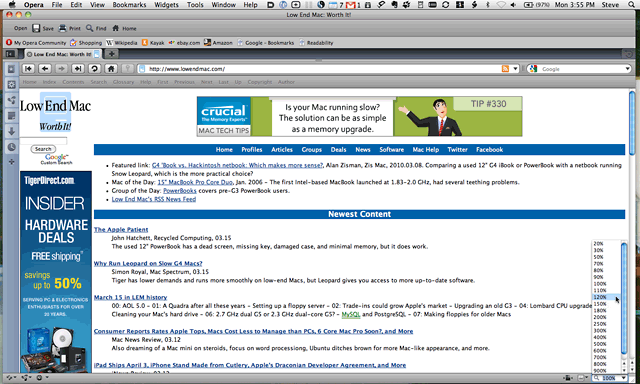
 Finally, Opera is alone in the browser market in offering the ability to zoom in the same manner as applications such as Microsoft Office, iWork, etc. In the lower right-hand corner of the window in Opera is a menu offering various levels of magnification. Just click on your selection. This function can also be accessed via the menu at View > Zoom. Note that this zooms the entire page and does not offer the ability to zoom only the text on the page. However, select View > Style > Accessibility Layout for a Readability-like enhanced page.
Plugins
In computing, a plug-in is a set of software components that adds specific capabilities to a larger software application.
Some browsers also support the use of plugins that can help people with accessibility problems.
Some of these plugins can be found on FireFox, Google Chrome, Safari and Opera.
Some examples are:
 NoSquint (Firefox) - NoSquint allows you to adjust the text-only and full-page (both text and images) zoom levels as well as color settings both globally (for all sites) and per site.
 Theme Font & Size Changer (Firefox)- Theme Font & Size Changer lets you change the global font size and font family used for the user interface in Firefox. Design your browser with your favorite font.
Glims (Safari) - It adds thumbnails to Google and Yahoo! search results. It lets you change search engines, and adds configurable search suggestions. And, as if that weren't enough for one plugin, It also allows you to enable full screen mode.
 nFinity Browser™ (Chrome)- provides an IE8 user experience, settings, & accessibility.With IE for Chrome, browsing no longer has boundaries.
Text Zoom
Magnification Tools
Today, we will look at some tools and techniques that are designed to magnify what you see on the screen.
All major browsers have the built-in ability to magnify screen content. The methods and capabilities vary significantly among the various browsers. Let's take a closer look at the leading web browsers: Camino, Safari, Opera, and Firefox.
Two Ways to Zoom
There are two ways a page can be magnified. The entire page can be zoomed or just the text. In the latter instance, the graphic elements on the page remain static while the text is enlarged. In a text-only zoom, text contained within graphics is not affected.
When the entire page is magnified, everything gets larger, not just the text. In this method, the relative layout of the page remains the same for the most part, except in instances of extreme zoom, when design elements are shifted around because they can't all fit on the page.
Camino Browser
Open Camino and go to View > Customize Toolbar. From the window that opens, there are four tools you will need to drag to the menubar: Bigger Text, Smaller Text, Zoom In, and Zoom Out.
Next, let's trick out Safari. Open Safari and go to View > Customize Toolbar. Drag the "Zoom" toolset to the toolbar.
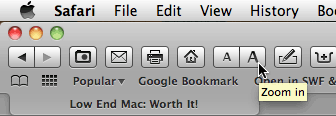
Click to zoom in or out. Note that the default behavior of this tool is to zoom the entire page. To make Safari zoom only the text, select View > Zoom Text Only. Changing the function of this tool requires toggling back and forth in this manner.
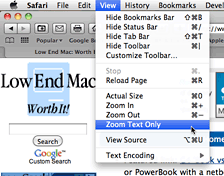
Unfortunately, Safari does not provide a way to place both functionalities on the toolbar at the same time.
Firefox Browser
Unfortunately, Firefox offers even few opportunities for customization. With no built-in ability to place zoom functionality in the toolbar, zooming in Firefox requires navigating the View pulldown menu.
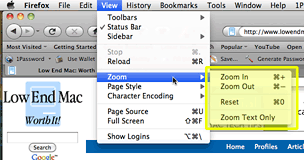
Toggle the behavior between full zoom and text-only by toggling the Zoom Text Only menu item. Then zoom in and out by selecting from the menu.
Firefox does offer the ability to quickly reset zoom to normal. Just select View > Zoom > Reset. Firefox is unique in that it remembers the zoom level when you exit the browser and reopen it. This feature is particularly handy if the person frequently visits the same website and prefers a particular size of the webpage.
Opera Browser
Plugins
In computing, a plug-in is a set of software components that adds specific capabilities to a larger software application.
Some browsers also support the use of plugins that can help people with accessibility problems.
Some of these plugins can be found on FireFox, Google Chrome, Safari and Opera.
Some examples are:
NoSquint (Firefox) - NoSquint allows you to adjust the text-only and full-page (both text and images) zoom levels as well as color settings both globally (for all sites) and per site. Theme Font & Size Changer (Firefox)- Theme Font & Size Changer lets you change the global font size and font family used for the user interface in Firefox. Design your browser with your favorite font.Glims (Safari) - It adds thumbnails to Google and Yahoo! search results. It lets you change search engines, and adds configurable search suggestions. And, as if that weren't enough for one plugin, It also allows you to enable full screen mode.
nFinity Browser™ (Chrome)- provides an IE8 user experience, settings, & accessibility.With IE for Chrome, browsing no longer has boundaries.